

In this article we share practical tips to help you get heard (better) during your next virtual meeting. Audio is a key part of any presentation, and the aim should be for your audience to not notice the audio. If they do notice it (e.g. in the form of an echo or feedback), this will reduce the overall quality of your presentation.
Tip 1. Use An External Microphone
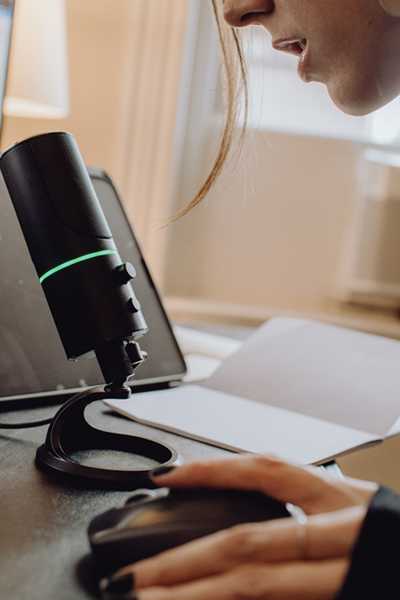
No matter how good the quality of your built-in microphone, consider using an external microphone for better results. By having a microphone placed closer to the sound’s origin (i.e. your mouth) you will capture clearer audio. In addition, there will be less chance of picking up echo from the room, which is what built-in microphones tend to do if you are speaking further away from them.
For example, if you are speaking into your computer’s built-in microphone from a distance, the microphone will tend to capture the audio from your mouth, and from the rest of the room.
You don’t have to go out and buy an expensive microphone—consider using a simple microphone such as that which comes with your smartphone’s headset.
Tip 2. Handling Your Microphone
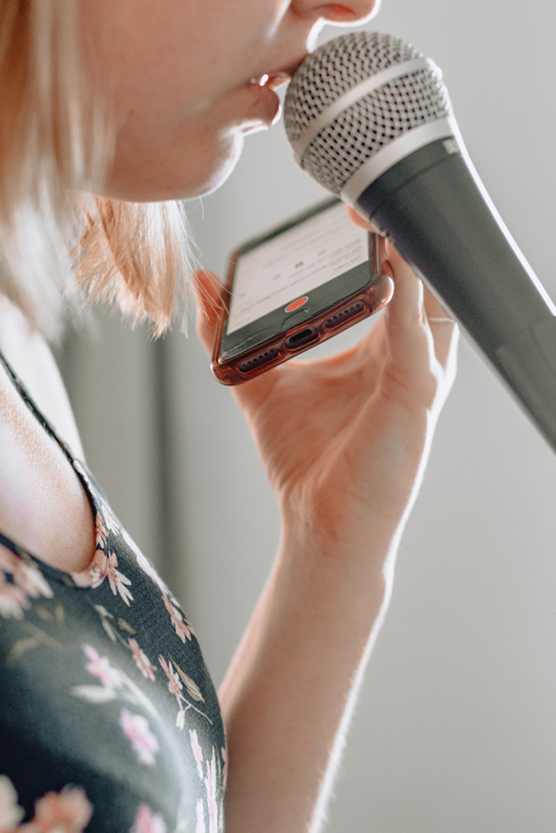
When using a microphone, do your best to avoid touching the microphone head with your hands, your clothing or accessories. Avoid gesticulating so much so that you knock the microphone, and do not speak too loudly into it. This will help avoid any jarring sounds for your audience!
Tip 3. Reduce Background Noise
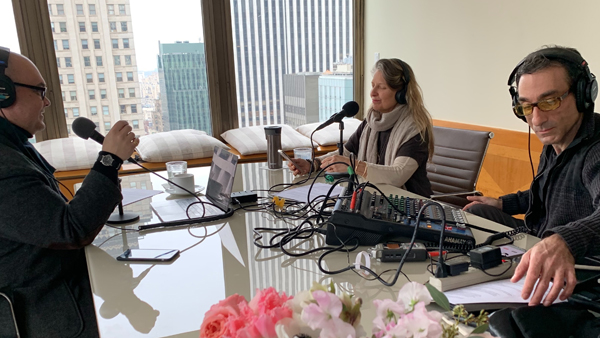
When appearing on camera in real-time (such as during an online conference) or when recording video, turn off notifications from all devices so that alert sounds do not interrupt and distract yourself and the audience. Also close all doors, and ask everyone in the vicinity to keep noise levels down during the session so that they too avoid creating distractions.
Bonus Tip: Hide The Mic (If You Can)

This isn’t essential, but to add an extra level of professionalism to your presentation, try to hide your microphone.
For example, if you are using a lavalier microphone, consider hiding it beneath your clothing so that the audience does not see the cable. However, bear in mind that the microphone still needs to be near your mouth and not be rubbing against clothing to capture quality sound.
At all times, make a decision that priorities quality. If hiding the microphone is going to negatively impact the sound quality, let the microphone be seen.
Want To Learn More?
Check out our comprehensive online video skills training course to learn everything you need to know about video:
- Pre-Production (scripting, storyboarding, video strategy)
- Production (how to look good on camera, how to shoot better video, how to light your video well) and
- Post-Production (tips on adding music, voice over, captions, and sharing your video with your audience).
The course contains fifty video lessons along with quizzes, templates and guides.
All of this is just A$299 for lifetime access to the full course.
Or, if you prefer just taking one section of courses, it’s just A$149 for lifetime access.
To try it out, we have a free taster lesson you can access here. You will learn why video is such a powerful medium for sharing knowledge with your audience—exciting stuff!